Most AI-generated portfolios look generic because they skip visual design entirely — you type "build me a portfolio" and the model reaches for the same boilerplate layouts, gradients, and filler copy everyone else gets.
The fix is a visual loop: design on a canvas first, decide exactly how it should look and feel, and only then generate code. This playbook walks through the actual run shown in the screenshots below — connecting Claude Code to Paper over MCP, pasting in reference screenshots, generating and steering variants on the canvas, expanding the winner into a full screen set, and finally building it as a real Next.js app.
The visual loop
Reference screenshots → Paper canvas (Claude Code + Paper MCP) → Explore & steer variants → Expand the winner into full screens → Next.js codeConnect Claude Code to Paper
Launch Claude Code in your terminal and connect to Paper through the Paper MCP server. Once it's linked, Claude can read and write your canvas directly — it lists the files on your team and asks which one you'd like to open.
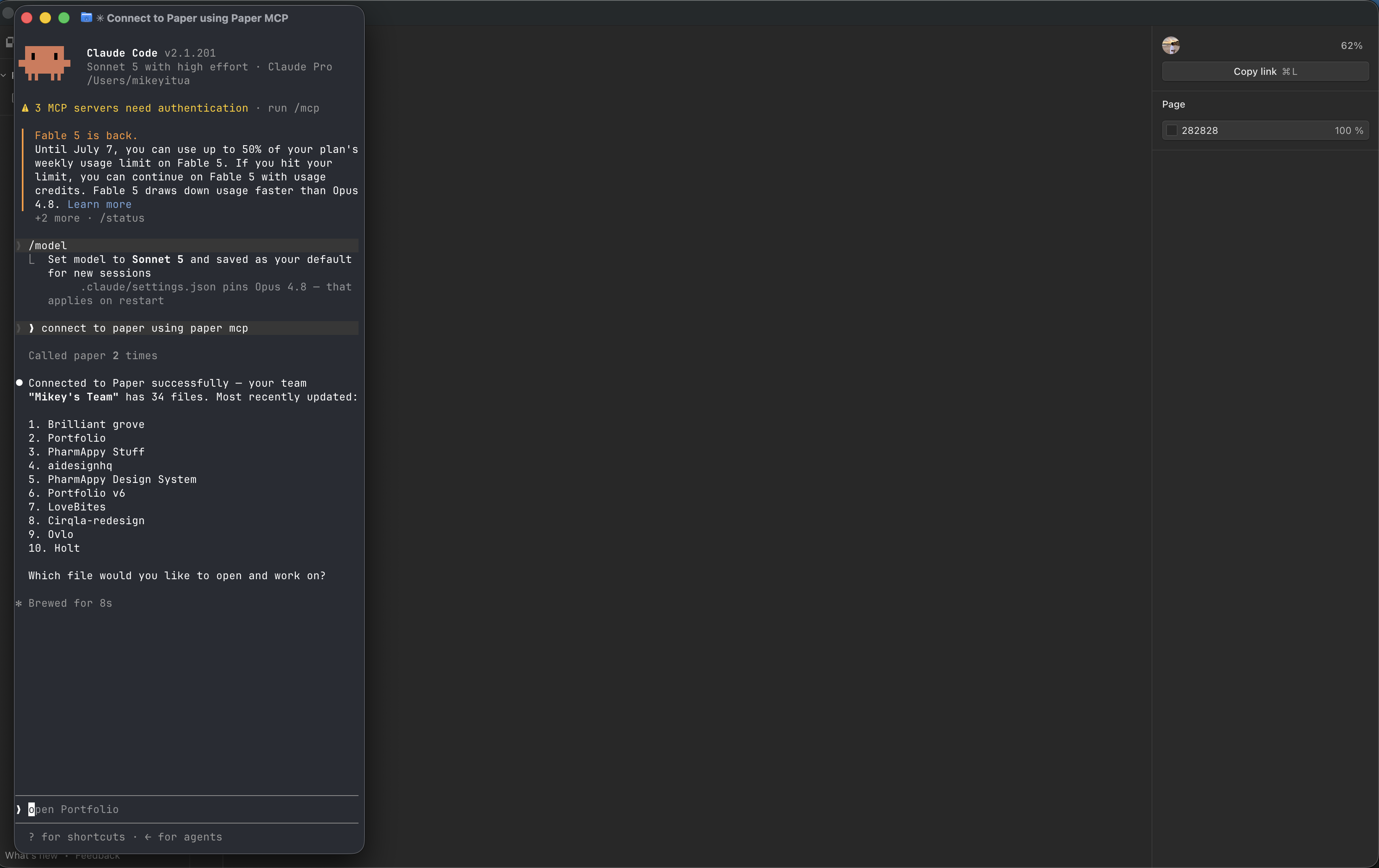
Connect to Paper using Paper MCP, then open the file you want to work in.
Paste your references onto the canvas
Drop the reference screenshots you've collected straight onto the Paper canvas and attach them to your prompt. Here, two portfolio references — a light navigation layout and a dark landing page — are pasted in as [Image #1] and [Image #2], so Claude is working from exactly what you're aiming for rather than a vague text description.
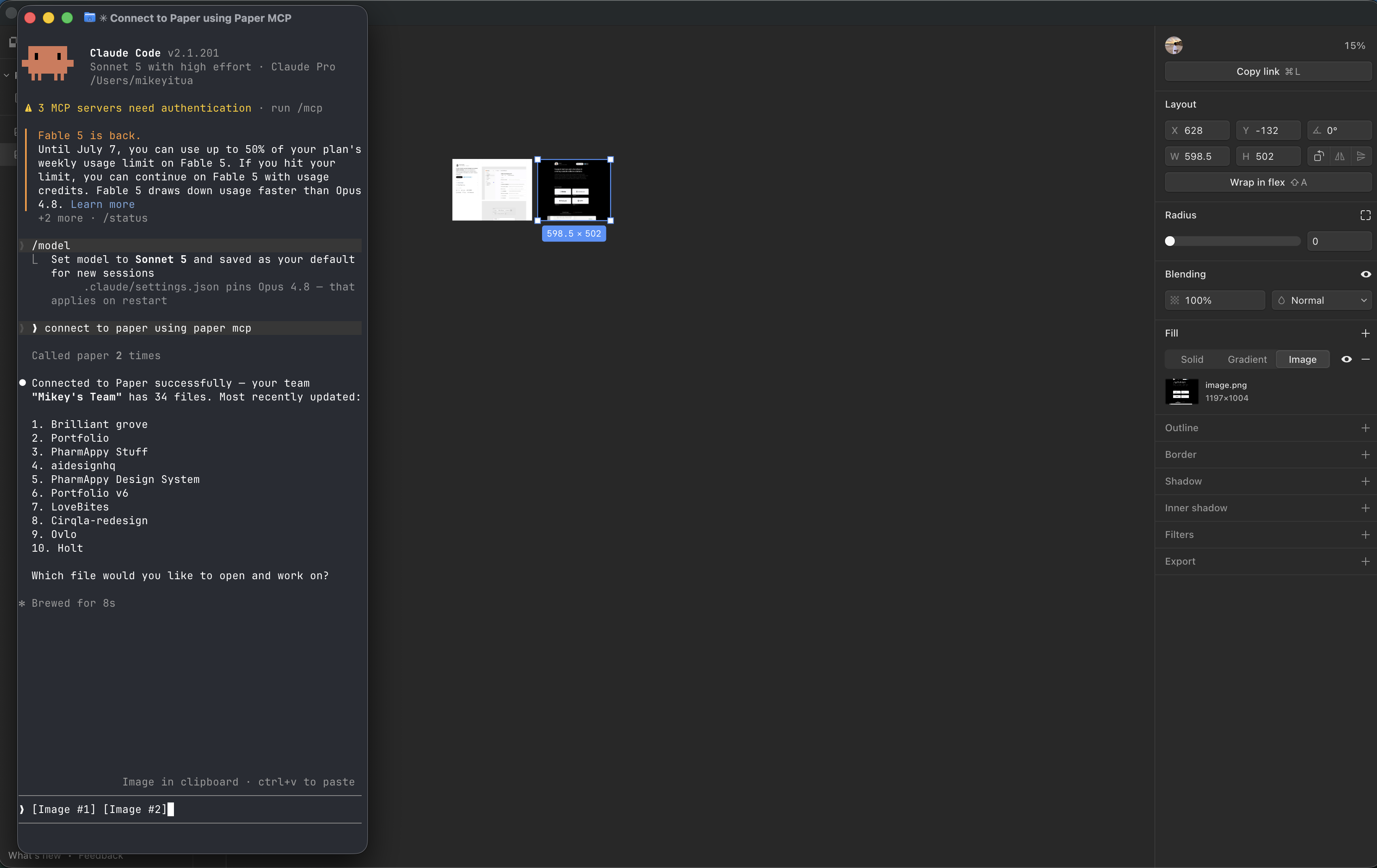
Your inspiration now lives on the canvas — Claude reads the actual pixels, not a written brief.
Prompt Claude to generate variants
Ask Claude to study the references and lay down several distinct directions on the canvas — one leaning on each reference, plus combinations of the two. Give type direction up front so it doesn't default to slop: reduced letter-spacing on the headings, a clean face for body text.
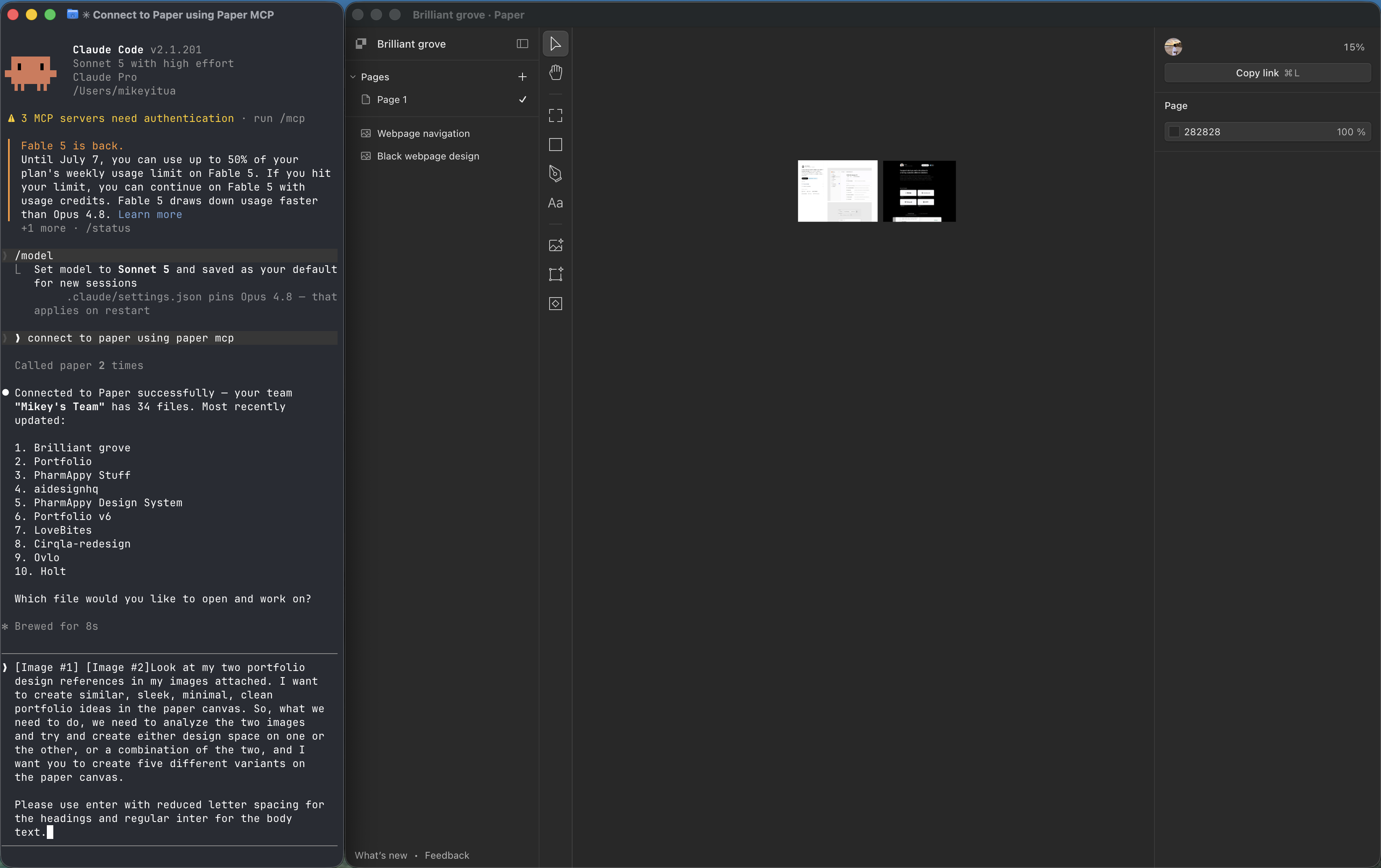
Be specific — "create five different variants… reduced letter-spacing for the headings, regular Inter for the body."
Answer Claude's setup questions
Before it starts drawing, Claude nails down the essentials — which file to build in, and how wide each artboard should be. A couple of quick answers (the open Brilliant grove file, 1440px desktop) and it starts choreographing the layouts.
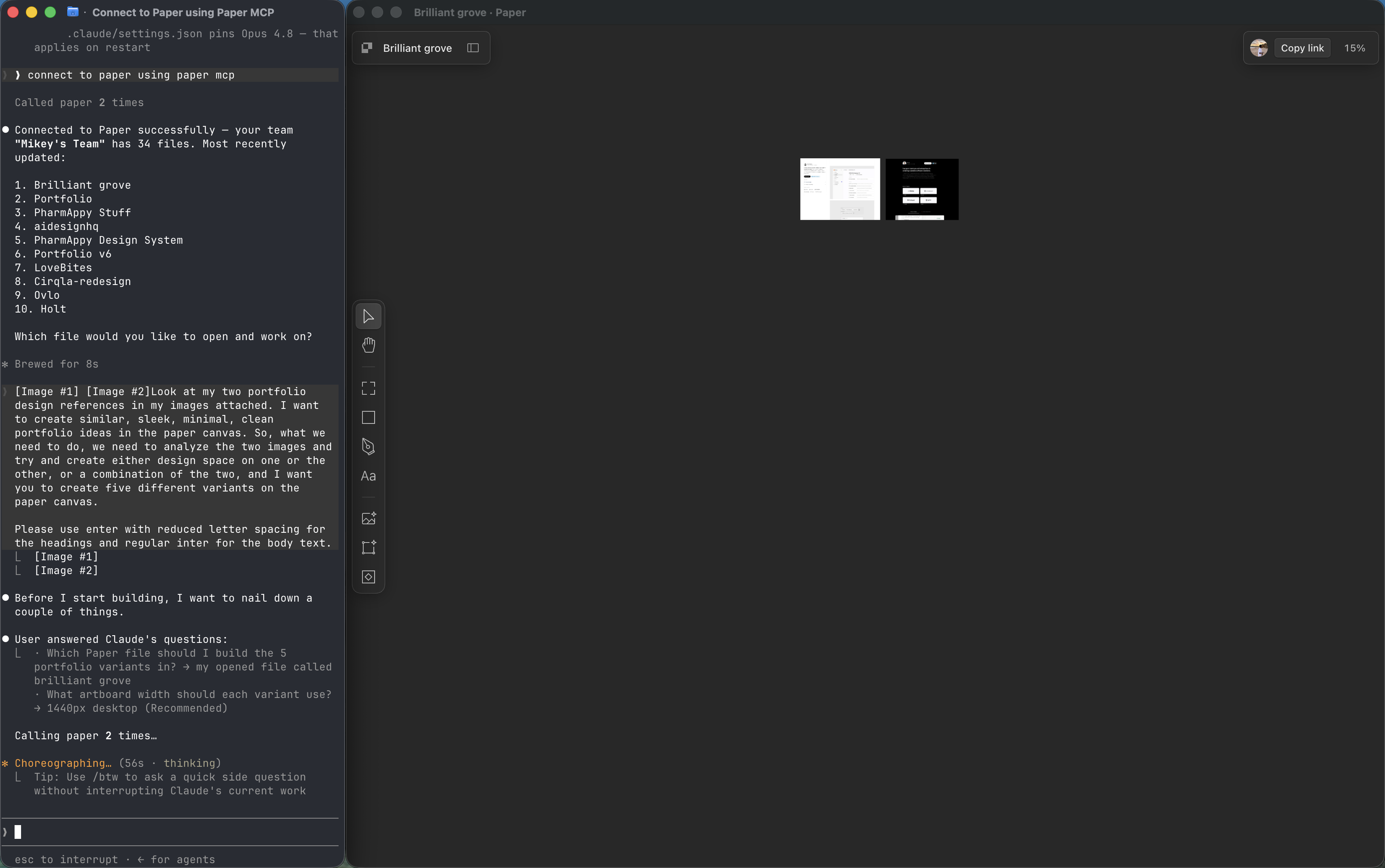
Confirming the file and artboard width keeps every variant on a consistent canvas.
Review the variants and steer
Claude lays down five variants — here Plaster Sidebar, Asphalt Grid, Copper Split, Cobalt Editorial, and Phosphor Terminal. Now do the part AI can't: judge them. Give concrete, visual feedback — cap the content width so it doesn't span the full 1440px frame, widen the sidebar on the variants that have one.
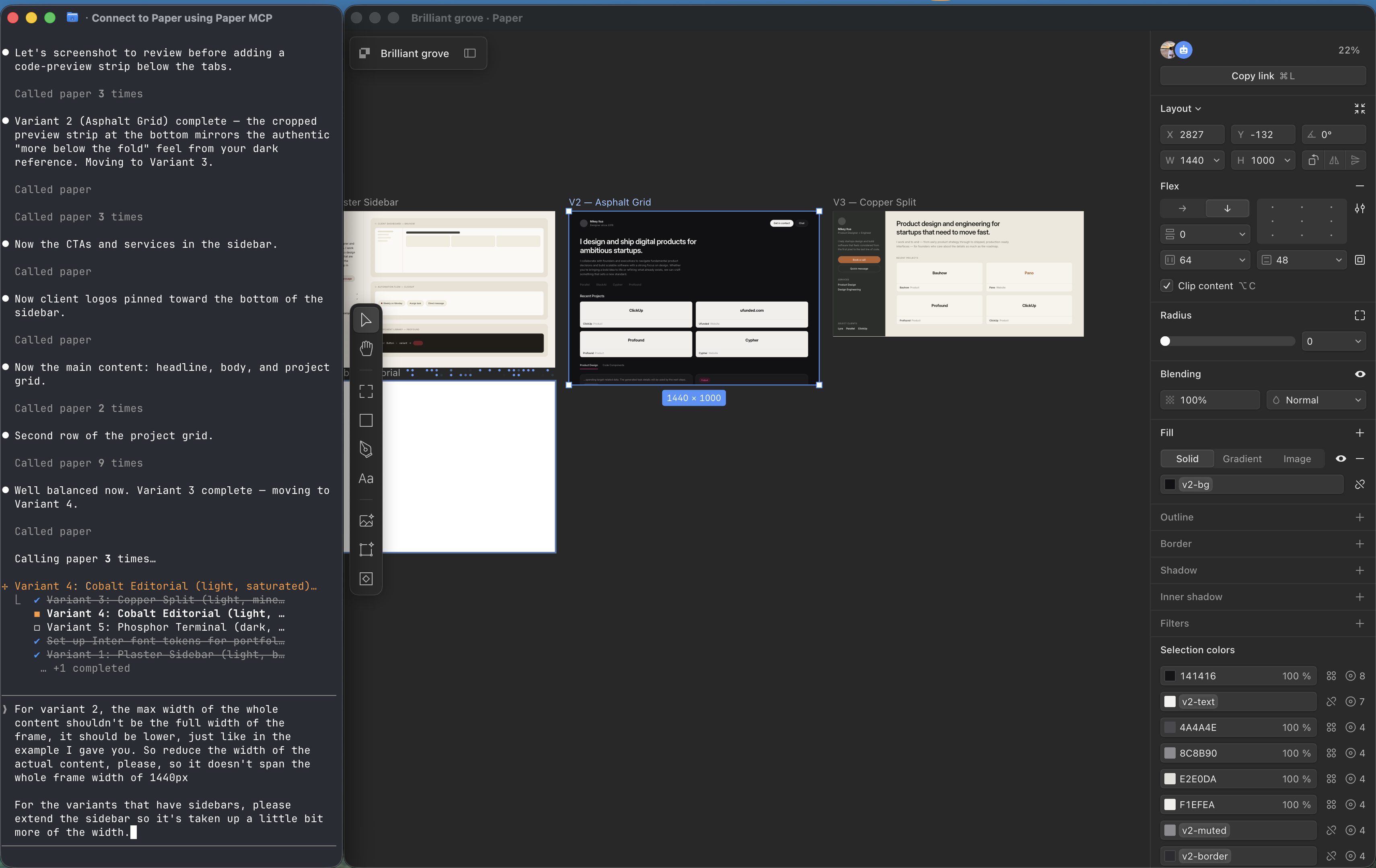
The variants are a starting point. Your eye and your notes are what pull them out of "template" territory.
Pick a direction and expand it
Choose the variant that's working — here the dark "Terminal Grid" direction — and push it further. Ask for more treatments of the same idea, and flag anything you've hand-tuned so Claude leaves it exactly as-is (in this run, a manually tweaked primary button).
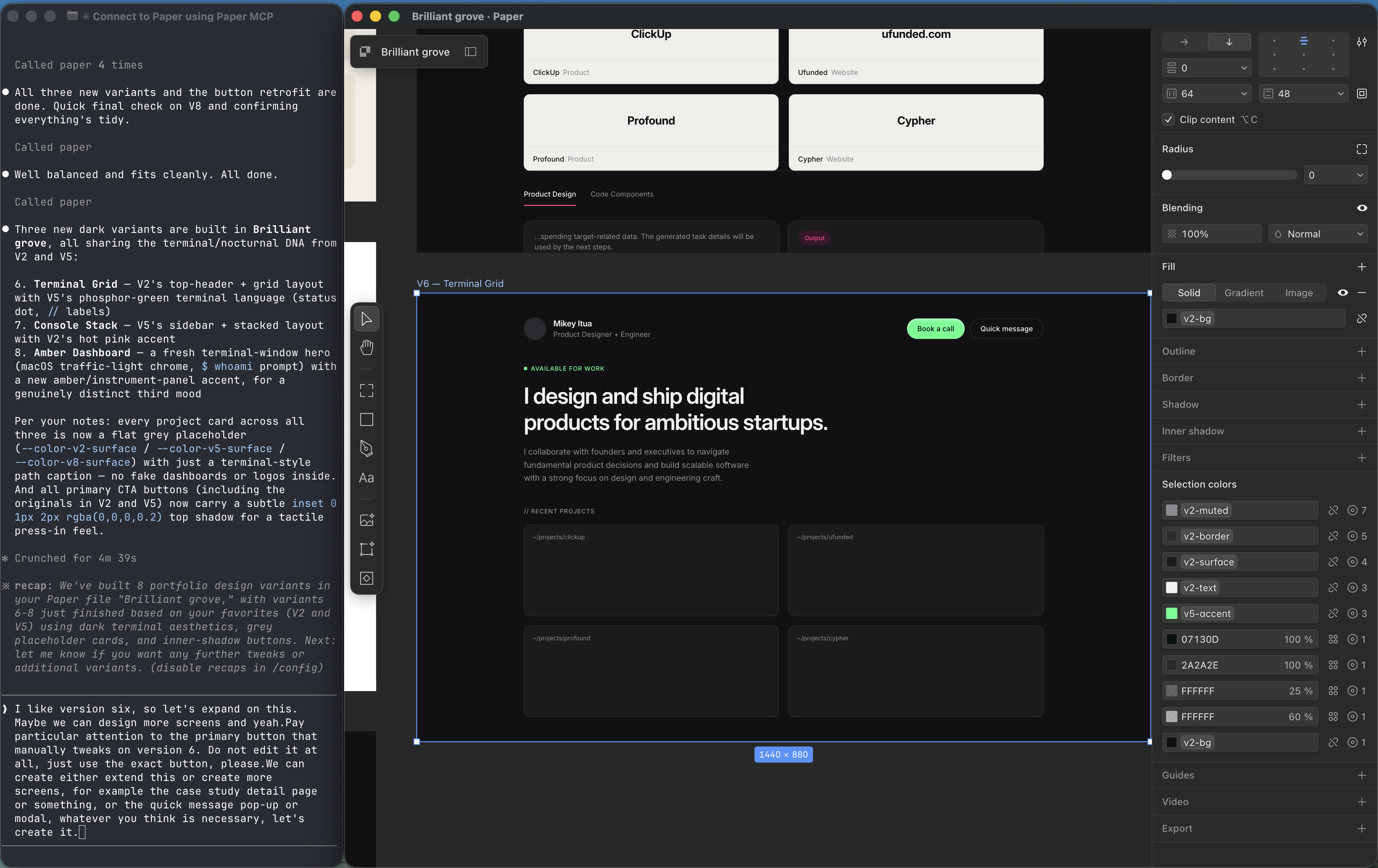
Lock your manual tweaks explicitly — "use the exact button, do not edit it" — so iteration doesn't undo your polish.
Grow the winner into a full screen set
With the direction locked, have Claude clone it into the rest of the flow — a case study detail page and a quick-message modal. Because it duplicates existing components rather than rewriting them, your hand-tuned button carries through untouched across every screen.
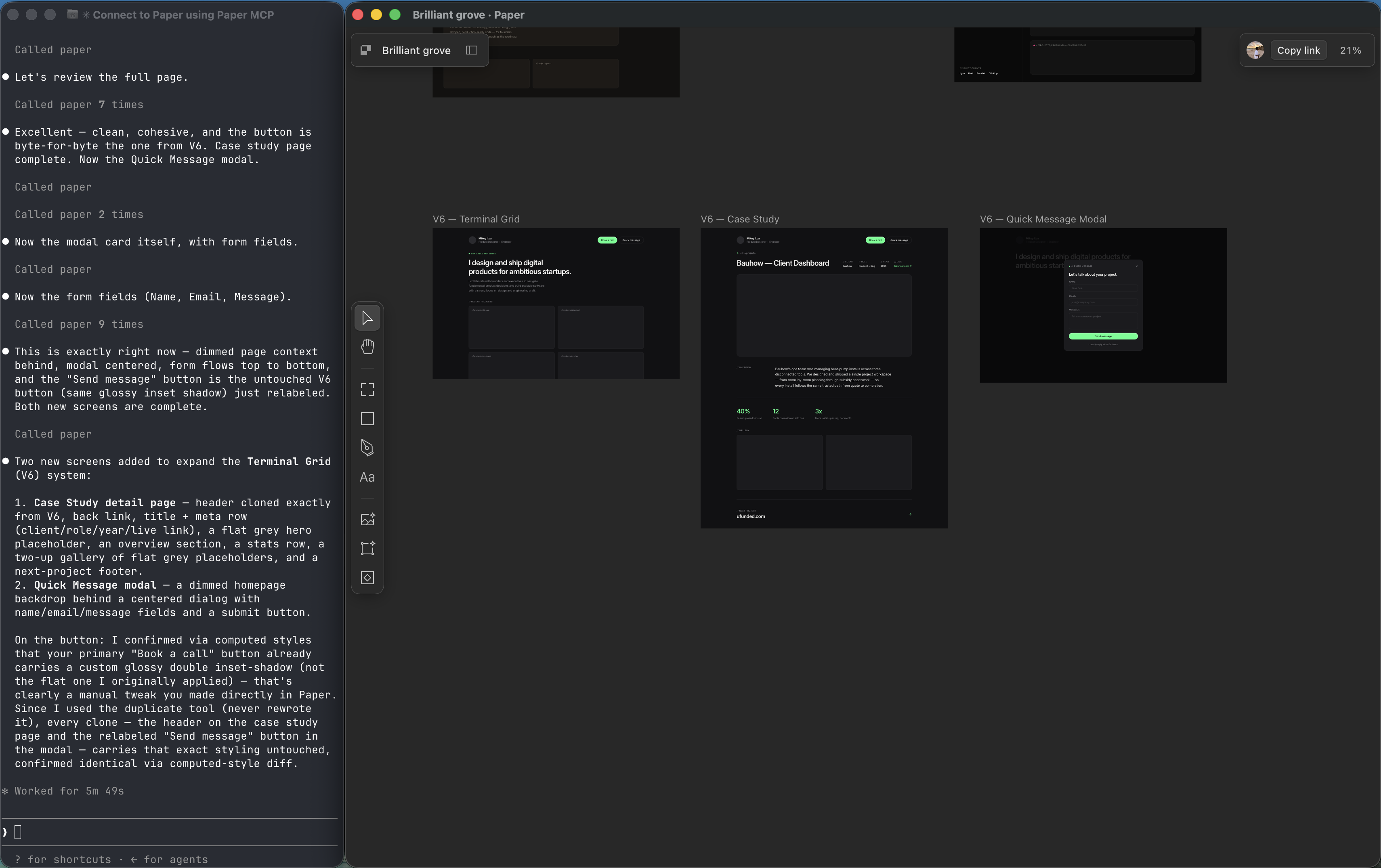
Cloning instead of rewriting keeps every new screen visually identical to the one you approved.
Build it as a Next.js app
The canvas is now your source of truth. Hand it back to Claude — "make it a Next.js app… make sure everything has good design and layout, like it is on Paper" — and it reads the structure and styles straight off the canvas to generate the real pages.
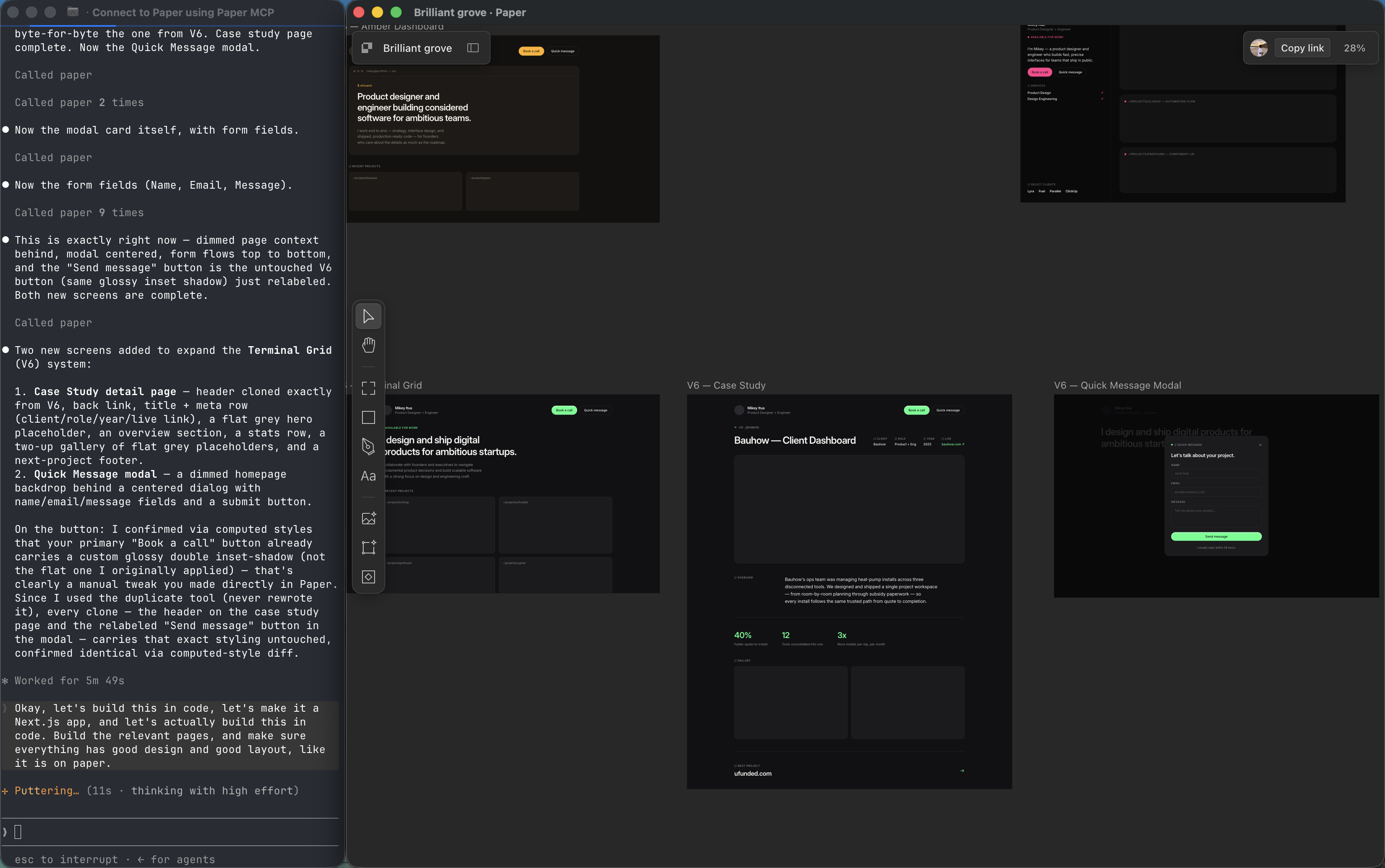
Because the code is translated directly from the canvas, the built site matches the mockups closely — no guesswork.
Next steps
You've now got the full loop: reference → canvas → variants → screens → shipped code. Grab the companion templates from the sidebar, then explore these to add motion and level up your design system.